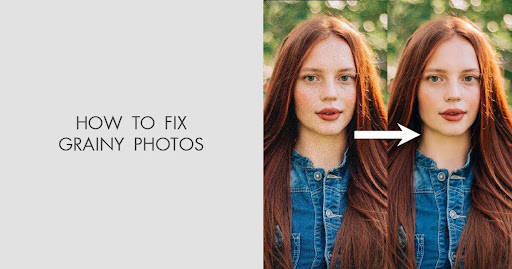
Grainy photos ruin your image-viewing experience. Whether it’s your valuable family picture, good landscape, or some professional photograph, too much grain or noise will hamper the quality of your pictures, making them look blurred. Graininess becomes more common in photographs taken in low light situations, high ISO settings, or by old-fashioned smartphones or digital cameras.
If you ever experience blur or grainy photos, don’t worry- there are several photo repair workarounds available that you can try to restore your image quality. In this guide, we’ll explore quick methods on how to fix grainy photos without losing detail.
What Are Grainy Photos? [Common Reasons]
A grainy photo contains unwanted visual noise that appears as tiny colored or monochrome specks across the image. While traditional film photography naturally produced film grain, digital grain is generally considered an image defect caused by sensor limitations or poor shooting conditions.
Digital noise often appears due to several reasons, such as:
- High ISO Levels: Higher ISO levels help you to take brighter pictures in low light conditions. At the same time, higher ISO levels make the camera sensor sensitive to light and increase digital noise considerably.
- Taking Pictures in Low Light Conditions: Taking photos in low light increases ISO or shutter speed. The high level of ISO creates grainy picture.
- Using Small Camera Sensor: Smaller camera sensors used by smartphones and compact cameras perform badly in low-light conditions, creating visible grainy pictures as opposed to DSLRs and mirrorless cameras.
- Too Much Compression: When you save photos after over andover compression, it impacts the JPEG image data and leads to visible grains in your photos.
- Long Exposure Photography: The use of long exposures heats the camera sensor in most cases, resulting in digital noise.
How do I Fix Grainy Photos Without Losing Detail? [Quick Methods]
Now that you’re familiar with the reasons for your grainy photos, it’s important to immediately apply adequate photo repair workarounds. You can easily go with the below methods one by one to fix grainy photos:
Method 01: Resize the Image
Let’s start with the simplest photo repair workaround first. When you upload pictures online on the internet, then resizing them will help to reduce visible grain to a great extent. For instance, reducing your 6000 x 4000 picture to 1920 x 1080 resolution may look clearer since multiple pixels of grain get combined to create fewer pixels.
This will help you to upload the image to social networking sites or websites. To resize the image, you have to:
- To start with, load the picture into any image editor application available to you (for example, Photoshop, Paint, Preview or even online picture resizers).
- Next, select Resize/Image size from the menu bar located on top.
- Now, just input the new resolution for the picture that you wish to resize it into.
- Also ensure that you check the box ‘Maintain Aspect Ratio’/’Constrain proportions‘.
- Once done, save your resized image.
Method 02: Repair Grainy Photos Using Photoshop
Adobe Photoshop is an excellent tool which allows you to fix the grain and other distortions in your photos. You can use the noise filter feature available in Photoshop to remove the noise from the pictures to some extent. Just follow the steps listed below:
- Firstly, launch the Photoshop tool on your Windows PC/Mac.
- Open the grainy photo that you need to repair.
- Click Filter from the menu bar at the top, then go to Noise > Reduce Noise.
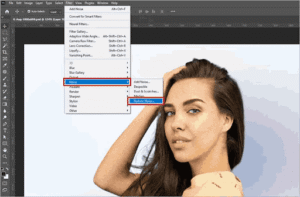
- Now, adjust the three sliders – Strength, Reduce Colour Noise, and Sharpen Details in the Reduce Noise window until your image quality seems good.
- Use the Preview feature to preview the repaired photos in the Remove JPEG Artefact box.
- Once you’re satisfied with the image result, click OK to save repaired images back to your device.
Method 03: Use Online Photo Repair
If you’re looking for a simple and direct solution, online photo repair can easily help you. Stellar Online Photo Repair is one of them and runs on your web browser; you do not have to install any software on your computer. With this online photo repair you will be able to fix the corrupted photos of many different file formats such as JPEG, JPG, PNG, TIFF, HEIC and RAW photos. This allows you to preview the repaired photo before saving it to your computer.
Steps to Repair Grainy or Damaged Photos Online
Step 1: Open a web browser and go to the official website of the Stellar Online Photo Repair. Click the “Upload Photos” button to add the grainy photo you wish to repair.
Step 2: After uploading the photo, click Start Repair to start fixing the corrupted photo. Wait until this will analyses the photo and repairs the photo of problems like corruption, pixelation, blurriness, colours, and many other visual defects.
Step 3: After the repair process, preview the repaired photos and click Download All Photos to download the repaired photos.
You can also read about Transforming Business Workflow.
Additional Tips for Better Repair Results
Consider the following additional tips to maximize photo quality after repair:
- Upload the highest-resolution version of your image whenever possible.
- Avoid repeatedly compressing or resaving JPEG files.
- Create backup of original photos before editing.
- Capture images in RAW format when using DSLR or mirrorless cameras.
- Use proper lighting and lower ISO settings to minimise grain during photography.
Final Thoughts
Grainy photos don’t always require complex editing software or advanced photo editing skills. If you’re having grainy photos, go with the aforementioned photo repair methods one by one to restore their image quality. Start with simple fixes like changing the image file size or editing it using Adobe Photoshop. If the issue keeps existing, try third-party online photo repair like Stellar Repair for Photo Online. It provides a simple and accessible solution for repairing corrupt photos.
By combining good photography practices with thoughtful editing techniques, you can restore grainy images into sharp, natural-looking photos that retain their original character and visual appeal.